If you want to delete photos off your iPhone , but not iCloud , there a few things you can do.
- Usually, your iPhone automatically backs up to your iCloud account, and if you delete photos from your iPhone , they’ll also be deleted from your iCloud .
- To get around this, you can turn off iCloud photo sharing, sign in to a different iCloudaccount, or use a cloud server other than iCloud for photo sharing.
- .
Apple’s iCloud allows you to share photos across devices, while also giving you an automatic backup should something happen to your iPhone .
For these reasons, the iCloud’s memory is more permanent and preserved better than the memory on your iPhone , iPad, or Mac.
However, the connectivity between iPhone and iCloud means that if you delete a picture on youriPhone , it’s also scrubbed from iCloud .
Luckily, there are a few workarounds that allow you to delete photos from your iPhone yet keep them in the cloud in perpetuity.
Check out the products mentioned in this article:
iPhone Xs (From $999 at Apple)
How to delete photos off your iPhone without deleting them from iCloud
The easiest way to do this is by simply turning your iCloud backup off.
Turn off iCloud photo sharing
1. Open Settings on your iPhone .
2. Tap on your name (Apple ID).
3. Tap on “iCloud” (should be the first subtitle below name, security, and payment).
4. Tap on “iCloud Photos” and “My Photo Stream” so the green toggle isn’t showing this will delete the iCloud album from your iPhone, but leave your album in iCloud intact.
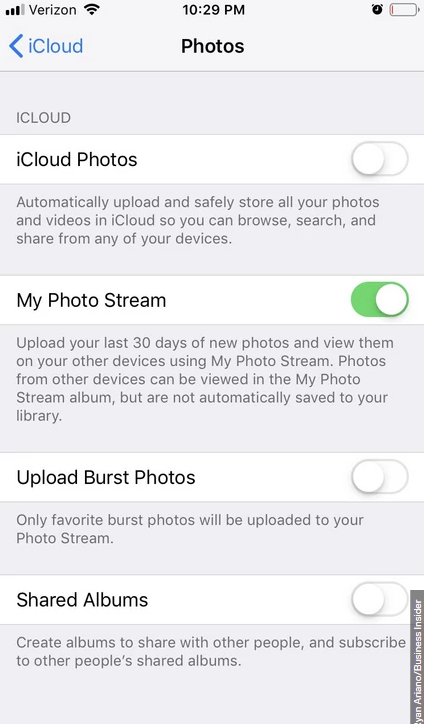
There is a drawback to this method: If you reconnect your photos to iCloud, it will update to match your phone, deletions and all. If you want a more permanent cloud backup for your photos, use a different cloud server.
Use a server other than iCloud for photo backup
For this example, I’m going to use Google Photos but there are many other cloud options you can choose from, including OneDrive, DropBox, Flickr.
1. Open the App Store and download Google Photos.
2. When you open Google Photos, it will ask for access to your camera, and various other permissions to function properly. Enable these.
3. If you have another Google account on your phone (e.g. a Gmail app), your iPhone should be able to use this to link your phone to your Google account.
4. Your iPhone will ask you to confirm that you want to use the Google account it currently has as your default.
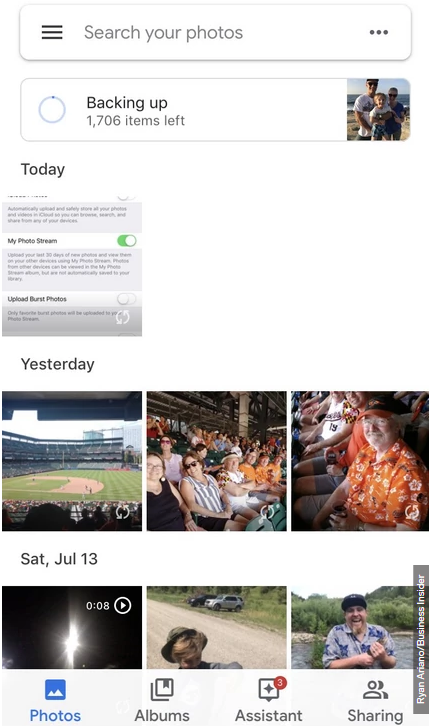
5. Once you tap “Confirm”, it will immediately start backing up your photo album on Google Photos.
Sign out of your current iCloud account, and sign into another one
1. Tap Settings.
2. Tap on your name (Apple ID).
3. Scroll down to the very bottom and tap on “Sign Out.” It will ask you to authenticate that you want to sign out.
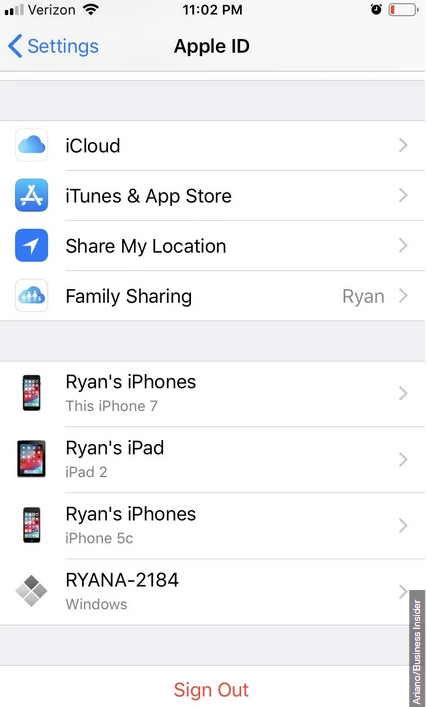
You’ll be asked which data you wish to keep on your iPhone after you sign out.
Now, you can sign into a separate iCloud account:
1. Tap Settings.
2. Tap on the Apple ID subheading.
3. It’ll ask for your iCloud sign-in. Whatever iCloud account you use to sign back in will now be your synced iCloud account.

 alloutblog